How to resize and compress images for admin document submissions
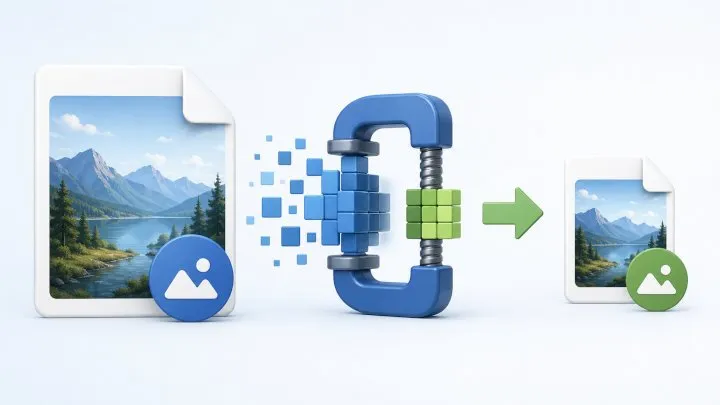
In short: As of September 5, 2026, check the portal’s rules first, then resize a copy of the original before compressing it. Choose GIMP for a sensitive document or precise control, and an online service for an occasional, non-confidential task. Submit JPEG, WebP, or AVIF only when the form explicitly accepts that format.
An image can be rejected even when it looks correct on screen. Its format, dimensions, file size, and framing must all match the relevant procedure.
Which requirements should you check before compressing?
There is no universal limit. Read the form’s instructions before making any change. For example, the U.S. Department of State’s digital image requirements require a square JPEG file and set limits on its size and dimensions. In France, Service-Public.fr specifies rules for recency, background, framing, expression, and sharpness for identity-document photos.
Always check:
- the accepted format, such as JPEG;
- the maximum file size;
- pixel dimensions and aspect ratio;
- the background, framing, and face position;
- how recent the photo must be;
- whether altering the person’s appearance is prohibited.
Compression is not facial retouching. Do not change facial features, skin color, or details used for identification.
Which compression tool should you choose?
iLoveIMG
iLoveIMG compresses JPG, PNG, SVG, and GIF images directly in the browser. Its separate resizing tool is useful when a form also imposes a precise width and height.
To prepare a copy:
- Duplicate the original image.
- Resize the copy to the official requirements.
- Compress that copy.
- Download and inspect the result before submitting it.
TinyPNG
TinyPNG accepts AVIF, WebP, PNG, and JPEG images, among other formats. As of September 5, 2026, its free interface states that you can select up to 20 images of 5 MB each.
Formats supported by the tool are not necessarily accepted by the administration. Keep the format requested by the portal.
Should you upload a sensitive document?
An online service necessarily receives the file it processes. For an identity photo or confidential document, prefer local software if you do not want to send the image to another provider. Otherwise, read its terms and privacy policy before uploading.
How do you compress an image with desktop software?
GIMP
GIMP is free, open-source software available on the main desktop operating systems. To prepare an image:
- Open a copy of the original.
- Use Image > Scale Image to set its dimensions.
- Choose File > Export As, then the
.jpgextension if the portal requires JPEG. - Adjust quality in the export dialog.
- Enable the preview and inspect the face at actual size.
The GIMP JPEG documentation recommends focusing primarily on the quality setting and notes that the same value does not necessarily produce the same result in two applications. Lower it gradually rather than relying on a universal percentage.
ImageMagick
ImageMagick suits scripts and batch jobs. With ImageMagick 7, the magick command is sufficient:
# Resize while preserving aspect ratio
magick photo.jpg -resize 600x600 result.jpg

# Export a JPEG copy with a defined quality
magick photo.jpg -quality 75 result.jpg

# Resize and compress in one command
magick photo.jpg -resize 600x600 -quality 75 result.jpg

# Process the JPG files in a folder; work on copies
magick mogrify -path output -resize 600x600 -quality 75 *.jpg
The ImageMagick resizing documentation confirms that -resize preserves the aspect ratio by default and fits the image inside the requested area. It does not automatically produce a square, so crop first when the procedure requires one.
WebP, AVIF, or JPEG: which format should you submit?
The best format is the one explicitly accepted by the form.
- JPEG: a common choice for photographs and a mandatory format in some procedures.
- WebP or AVIF: efficient formats, but use them only when the portal names them.
- PNG: useful for some graphics, but rarely the first choice for an administrative photo.
Do not simply change the file extension. The tool must perform a real conversion, after which you should reopen and inspect the result.
How much quality loss is acceptable?
Acceptable compression does not create blocky edges, smooth out facial features, or blur the eyes, hair, or outline of the face. Inspect the result at actual size, not only as a thumbnail.
Follow this order:
- return to the original;
- crop without distorting the face;
- resize to the requested dimensions;
- export a copy;
- lower quality gradually if the file is still too large;
- compare the result with the original.
Avoid repeated exports from an already compressed JPEG. Each new lossy compression can add defects.
Which checklist should you follow before submission?
- The format exactly matches the instructions.
- The file does not exceed the stated limit.
- The dimensions and aspect ratio are correct.
- The face is neither stretched nor retouched.
- The background, framing, and expression follow the procedure.
- The final file opens correctly.
- You kept the original separately.
Which mistakes should you avoid?
Applying a rule found elsewhere: requirements for a visa, passport, and another portal are not interchangeable.
Distorting the image: forcing a width and height without preserving proportions stretches the face. Crop first, then resize.
Targeting extreme compression immediately: start with the dimensions, then adjust quality in stages.
Sending the sensitive original to several services: prefer a local tool or check the provider’s terms.
Conclusion
The most reliable method is to follow the portal’s rules, work on a copy, resize before compressing, and inspect the final file. For an occasional task, iLoveIMG or TinyPNG simplifies the process. For a sensitive document or a precise result, I recommend GIMP. ImageMagick remains the best choice for automating batches.
Sources
Frequently asked questions
Which tool should you use to compress an administrative photo?
For a one-off task, iLoveIMG or TinyPNG is sufficient. To keep the file on your computer or control dimensions and quality precisely, choose GIMP; ImageMagick is better suited to automation and batch processing.
Should you submit a photo as WebP, AVIF, or JPEG?
Use exactly the format requested by the portal. JPEG is still required for some official applications, even though modern compressors also accept WebP and AVIF.
How much quality loss is acceptable for an identity photo?
Compression is acceptable while the face, edges, and details remain sharp at actual size. Start from the original, reduce the dimensions first, then lower quality gradually while checking the preview.
How do you get an image below the maximum file size?
First match the requested dimensions, then export a JPEG copy and reduce its quality gradually. Check the final file's size, dimensions, and visual appearance before submission.